Some of the tools that are useful for distributed teams are also appropriate for teams that may not be distributed. I recently had a chance to listen to the collaboration requiremetns of a small team, within a financial services company.
They told me that they were considering WebEx workspace and Rational Clearcase for online document collaboration. They are a content development team. They work mostly with word documents, PowerPoint files, image files and pdf files. They struggle with document versioning and finding a document associated with a project quickly and efficiently. [They work on about 20 projects a year]
I compared the options they had. I looked at WebEx Workspace and compared it with Microsoft SharePoint. Rational Clearcase, in my opinion, is not for small non-technical teams. WebEx Workspace looks promising. There is document versioning available. However based on the trial account I looked at, it has a long way to go before it can catch up with the ease of use and feature list of SharePoint.
One downside of SharePoint is that it will require other Microsoft products such as FrontPage [to customize the look and feel] and the latest versions of Microsoft office for users to take advantage of all the features that are available.
Branding of the home page was never mentioned as a big priority for the users I spoke to. Ease of use and navigation were big priorities. A simple clean home page was another big priority. Total cost of ownership was a priority. Help to understand the boundaries of the software and best practices of online collaboration was a priority.
The marketing efforts of Microsoft seems to be towards promoting SharePoint as a WebSite creation tool for small companies and businesses. I wonder if that is the right direction. Even the examples provided in the Microsoft web site emphasise branding over collaboration features.
Sunday, January 29, 2006

Tuesday, January 24, 2006
Leaders: Be Visible and Reachable
Leaders of distributed teams need to be visible and available. This is not always easy to do in a distributed environment. Last week, one of my team members had to go to a client meeting in Ireland. He informed his manager but left without informing his team or providing a contact number. This led to a lot of anxiety and escalations. In a virtual environment it is extremely important to keep people posted about your whereabouts.
Another important thing is to be available to your team. If people can’t reach you when they need you they will find a way to get things done without you and eventually your will be of less value to them. It is good to let everyone know about your preferences for communication so that they can reach you when they need you.
Another important thing is to be available to your team. If people can’t reach you when they need you they will find a way to get things done without you and eventually your will be of less value to them. It is good to let everyone know about your preferences for communication so that they can reach you when they need you.
Monday, January 23, 2006
Document Portal: No weather info please
I recently has a chance to talk to some users in a 50 person distributed company about what they want and do not want in their collaboration portal. They use Microsoft SharePoint. They said that they wanted a simple site which clearly tells them what the can find in the site and where they can find it. They specifically requested to remove information about the weather and business news.
I wish that the portal administrators of large companies listen to their employees. Almost all company and academic collaboration portals that I see are overloaded with weather information, stock price, a large number of rarely used links and too many features. My advise would be to cut features down, keep it simple and add features only if users specifically request for them.
I wish that the portal administrators of large companies listen to their employees. Almost all company and academic collaboration portals that I see are overloaded with weather information, stock price, a large number of rarely used links and too many features. My advise would be to cut features down, keep it simple and add features only if users specifically request for them.
Saturday, December 17, 2005
Exploiting the Strengths of Your Virtual Team
Like me, many of my colleagues at work manage virtual teams within the US and outside. Some of them do not see their team members face-to-face for months together. I see my co-managers struggle to build a team, keep their team identify, motivate their teams and get the best out of their teams. They sometimes blame it on the virtual nature of their teams. All of us tend to think that virtual teams are less advantageous than co-located teams. That may not be the case. For example, I find virtual meetings very productive if those meetings are planned and conducted well.
A recent Harvard Business Review article titled 'Can Absence Make a Team Grow Stronger' argues that virtual teams have their advantages and managers need to exploit them. It argues that far flung teams can be remarkably productive, even outperforming group members who work side by side. If you are a manager with remote team members, this article is worth reading. You can buy it online.
A recent Harvard Business Review article titled 'Can Absence Make a Team Grow Stronger' argues that virtual teams have their advantages and managers need to exploit them. It argues that far flung teams can be remarkably productive, even outperforming group members who work side by side. If you are a manager with remote team members, this article is worth reading. You can buy it online.
Recording Presentations and Meetings
There are several of us who struggle with note taking at work and at school. There is always a need to recall what some one said in a meeting. There is a need to share the experience with a remote team members who could not attend the meeting.
These pain points can be addressed to some extent by using the offline desktop recorder provided by WebEx. It can be downloaded from the WebEx site. A search for 'WebEx recorder" should also take you to the download page. I use this often at school when there is a need to follow step by step procedures in a corportate finance or decision models class. The audio quality is average. The files for a two hour recording may be about 30 MB and can be streamed from a web site is necessary. If you are wondering how to fill up your 60GB hardrive, this is a good way to do that.
You may need an external mike if your laptop does not have an inbuilt microphone. You can get a good mike for less then $40. Writing notes is more efficient. However having the webex recording as a backup is very reassuring.
There were requests about the procedure to use the Offline WebEx Recorder. So I have added the procedure to record here.
1. Click here to download the WebEx Recorder.
2. Once you download the WebEx Recorder, install it like any other application.
Recording a Session
Look at the sequence of images for reference.
1. Launch the WebEx Recorder by doubleclicking on the Recorder Icon on the desktop.
The WebEx Player Window will appear.

2. Choose FILE + OPEN APPLICATION.
The Open Application Window will appear.

3. Choose WINDOWS DESKTOP and click SELECT
The File Chooser window will appear.
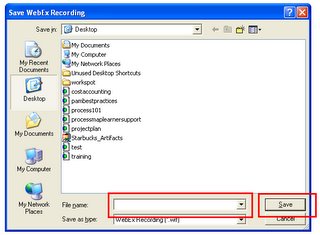
Type AFile Name and click SAVE
The WebEx Recorder Window will appear. You are now ready to record your screen and audio.

4. Click on the Record Button to Start Recording.
Your desktop along with the audio [if you have a microphone connected] will get recorded.
Do a trial recording before you do your first recording session. Click on the PAUSE button to puase.
These pain points can be addressed to some extent by using the offline desktop recorder provided by WebEx. It can be downloaded from the WebEx site. A search for 'WebEx recorder" should also take you to the download page. I use this often at school when there is a need to follow step by step procedures in a corportate finance or decision models class. The audio quality is average. The files for a two hour recording may be about 30 MB and can be streamed from a web site is necessary. If you are wondering how to fill up your 60GB hardrive, this is a good way to do that.
You may need an external mike if your laptop does not have an inbuilt microphone. You can get a good mike for less then $40. Writing notes is more efficient. However having the webex recording as a backup is very reassuring.

There were requests about the procedure to use the Offline WebEx Recorder. So I have added the procedure to record here.
1. Click here to download the WebEx Recorder.
2. Once you download the WebEx Recorder, install it like any other application.
Recording a Session
Look at the sequence of images for reference.
1. Launch the WebEx Recorder by doubleclicking on the Recorder Icon on the desktop.
The WebEx Player Window will appear.
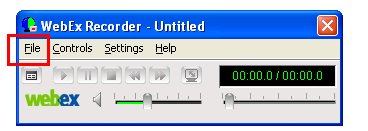
2. Choose FILE + OPEN APPLICATION.
The Open Application Window will appear.

3. Choose WINDOWS DESKTOP and click SELECT
The File Chooser window will appear.
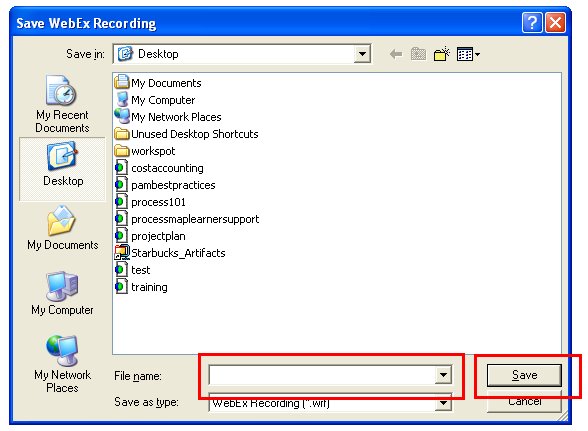
Type AFile Name and click SAVE
The WebEx Recorder Window will appear. You are now ready to record your screen and audio.
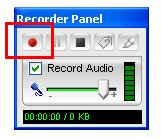
4. Click on the Record Button to Start Recording.
Your desktop along with the audio [if you have a microphone connected] will get recorded.
Do a trial recording before you do your first recording session. Click on the PAUSE button to puase.
Subscribe to:
Posts (Atom)
