Like me, many of my colleagues at work manage virtual teams within the US and outside. Some of them do not see their team members face-to-face for months together. I see my co-managers struggle to build a team, keep their team identify, motivate their teams and get the best out of their teams. They sometimes blame it on the virtual nature of their teams. All of us tend to think that virtual teams are less advantageous than co-located teams. That may not be the case. For example, I find virtual meetings very productive if those meetings are planned and conducted well.
A recent Harvard Business Review article titled 'Can Absence Make a Team Grow Stronger' argues that virtual teams have their advantages and managers need to exploit them. It argues that far flung teams can be remarkably productive, even outperforming group members who work side by side. If you are a manager with remote team members, this article is worth reading. You can buy it online.
Saturday, December 17, 2005

Recording Presentations and Meetings
There are several of us who struggle with note taking at work and at school. There is always a need to recall what some one said in a meeting. There is a need to share the experience with a remote team members who could not attend the meeting.
These pain points can be addressed to some extent by using the offline desktop recorder provided by WebEx. It can be downloaded from the WebEx site. A search for 'WebEx recorder" should also take you to the download page. I use this often at school when there is a need to follow step by step procedures in a corportate finance or decision models class. The audio quality is average. The files for a two hour recording may be about 30 MB and can be streamed from a web site is necessary. If you are wondering how to fill up your 60GB hardrive, this is a good way to do that.
You may need an external mike if your laptop does not have an inbuilt microphone. You can get a good mike for less then $40. Writing notes is more efficient. However having the webex recording as a backup is very reassuring.
There were requests about the procedure to use the Offline WebEx Recorder. So I have added the procedure to record here.
1. Click here to download the WebEx Recorder.
2. Once you download the WebEx Recorder, install it like any other application.
Recording a Session
Look at the sequence of images for reference.
1. Launch the WebEx Recorder by doubleclicking on the Recorder Icon on the desktop.
The WebEx Player Window will appear.

2. Choose FILE + OPEN APPLICATION.
The Open Application Window will appear.

3. Choose WINDOWS DESKTOP and click SELECT
The File Chooser window will appear.
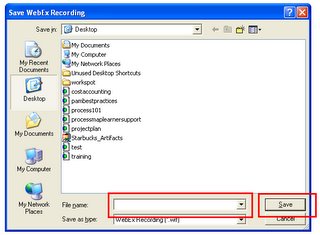
Type AFile Name and click SAVE
The WebEx Recorder Window will appear. You are now ready to record your screen and audio.

4. Click on the Record Button to Start Recording.
Your desktop along with the audio [if you have a microphone connected] will get recorded.
Do a trial recording before you do your first recording session. Click on the PAUSE button to puase.
These pain points can be addressed to some extent by using the offline desktop recorder provided by WebEx. It can be downloaded from the WebEx site. A search for 'WebEx recorder" should also take you to the download page. I use this often at school when there is a need to follow step by step procedures in a corportate finance or decision models class. The audio quality is average. The files for a two hour recording may be about 30 MB and can be streamed from a web site is necessary. If you are wondering how to fill up your 60GB hardrive, this is a good way to do that.
You may need an external mike if your laptop does not have an inbuilt microphone. You can get a good mike for less then $40. Writing notes is more efficient. However having the webex recording as a backup is very reassuring.

There were requests about the procedure to use the Offline WebEx Recorder. So I have added the procedure to record here.
1. Click here to download the WebEx Recorder.
2. Once you download the WebEx Recorder, install it like any other application.
Recording a Session
Look at the sequence of images for reference.
1. Launch the WebEx Recorder by doubleclicking on the Recorder Icon on the desktop.
The WebEx Player Window will appear.
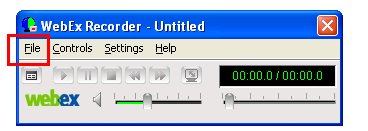
2. Choose FILE + OPEN APPLICATION.
The Open Application Window will appear.

3. Choose WINDOWS DESKTOP and click SELECT
The File Chooser window will appear.
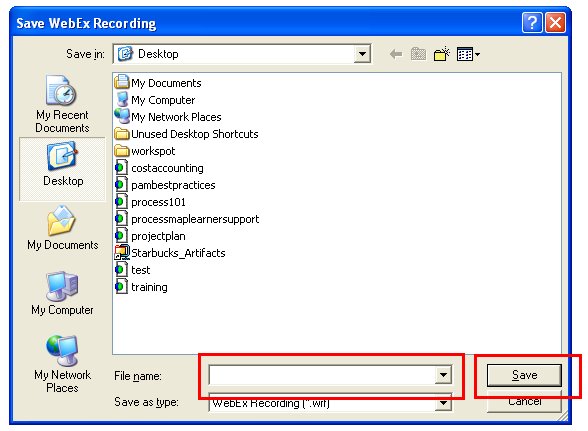
Type AFile Name and click SAVE
The WebEx Recorder Window will appear. You are now ready to record your screen and audio.
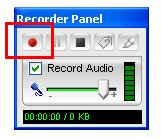
4. Click on the Record Button to Start Recording.
Your desktop along with the audio [if you have a microphone connected] will get recorded.
Do a trial recording before you do your first recording session. Click on the PAUSE button to puase.
Saturday, November 26, 2005
Online Meeting Tools
The cost of online meeting tools has come down significantly since 2000. GoToMeeting.com and several other meeting services are competing with WebEx and LiveMeeting. WebEx's new service http://www.meetmenow.com/ looks like an interesting new product which is priced at $49 per month. This kind of pricing makes it affordable for student groups distributed across cities. My MBA class struggled a lot with this until a classmate from Microsoft offered to provide LiveMeeting for some review sessions. The marketing managers of WebEx and LiveMeeting could target all business schools with MBA programs for working professionals. It is a good market.
One of the new features is integrated VOIP calling in these services. The significance of this feature is that it enables you to record the meeting along with the voice without any external adaptors. In other words you just hit the record button and the desktop along with the voice is recorded.
I use a DELL laptop with a built in microphone to record ambient sounds into WebEx meetings. It works out very well. Most of my colleagues use it to record training workshops and important presentations. We instantly turn the recordings into very compelling training resources.
The online meetings area is becoming a commodity and I believe it is a matter of time before we see such products integrated into regular office software.
In December 2005, Live Meeting from Microsoft came up with a service for $20 a month.
One of the new features is integrated VOIP calling in these services. The significance of this feature is that it enables you to record the meeting along with the voice without any external adaptors. In other words you just hit the record button and the desktop along with the voice is recorded.
I use a DELL laptop with a built in microphone to record ambient sounds into WebEx meetings. It works out very well. Most of my colleagues use it to record training workshops and important presentations. We instantly turn the recordings into very compelling training resources.
The online meetings area is becoming a commodity and I believe it is a matter of time before we see such products integrated into regular office software.
In December 2005, Live Meeting from Microsoft came up with a service for $20 a month.
Saturday, October 08, 2005
Protocol: Document Sharing
The Columbia Business School uses an internal collaboration site to enable students [including the Executive MBA students who live and work in different cities in the US and Europe] and professors share documents among other things. 95% of the time we go there to get documents that the professors post. Class surveys and grades are also posted there.
Even though it is designed for the primary purpose of document sharing between students and professors, it has a very basic problem. There are several places for the professor to place the documents. There is the lectures folder, the session folder, schedule folder, the files folder, and the home page. Every professor places the files in a different place. Some attach it to every session. Some attach it to the home page. Some attach it to the files folder and so on. As the academic rep I get calls from my class mates asking questions about where a certain file is and I then ask the professor. It is a terrible waste of their time.
This seemingly simple thing has a very big impact on the way we do work and our productivity. I keep wondering if this is how majority of corporate America does collaboration.
When it comes to document sharing, all teams need to follow one simple rule. A place for everything and everything in place. All the designers of this collaboration site need to do is designate a place for lecture notes and remove the other folders.
I brought this up with the administration team and a few weeks later they removed all the extra folder locations where professors could post their documents. This simple change eliminated all complaints from students. It is surprising how big a difference this seemingly small change made. This is a good lesson for enterprise document management systems administrators and designers.
Even though it is designed for the primary purpose of document sharing between students and professors, it has a very basic problem. There are several places for the professor to place the documents. There is the lectures folder, the session folder, schedule folder, the files folder, and the home page. Every professor places the files in a different place. Some attach it to every session. Some attach it to the home page. Some attach it to the files folder and so on. As the academic rep I get calls from my class mates asking questions about where a certain file is and I then ask the professor. It is a terrible waste of their time.
This seemingly simple thing has a very big impact on the way we do work and our productivity. I keep wondering if this is how majority of corporate America does collaboration.
When it comes to document sharing, all teams need to follow one simple rule. A place for everything and everything in place. All the designers of this collaboration site need to do is designate a place for lecture notes and remove the other folders.
I brought this up with the administration team and a few weeks later they removed all the extra folder locations where professors could post their documents. This simple change eliminated all complaints from students. It is surprising how big a difference this seemingly small change made. This is a good lesson for enterprise document management systems administrators and designers.
Saturday, September 24, 2005
Protocol : For Communication + Note Exchange
 This is a sample protocol document that we used to recognized different types of communication. Even though it looks too detailed, the document faded into the background over time and the behaviour stayed with us.
This protocol helped us to differentiate between various types and communications. We differentiated between a note exchange, a discussion, a meeting, a presentation, a workshop and a conference. We even had mini versions of workshops called plug-in workshops to accomodate those informal impromptu communication sesions.
NOTE
What is a Note?
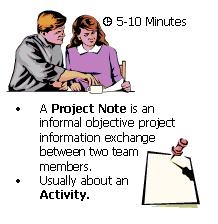
· An informal, objective project information-exchange between two team members.
· A note is not written if the other team member is physically present.
· This would consume not more than five minutes of the team members' time. It is the equivalent of a real-world short conversation between two people.
Project Procedures
How is a Note exchanged and between whom?
A NOTE is exchanged as a simple e-mail message or Chat.
It is exchanged between any two employees.
Team Directives
Properties of a Note
· The Note sent by email shall have a subject and shall follow this format if sent via email.
COMPANY Project Code + Unit Name + Task name
For Example: SA + Library + QA Implementation
Who shall you CC it to and who shall you not CC it to?
· The Note shall be exchanged between two people only. A copy [of an intra assignment note] could be marked to other team members for information purposes.
· A Project Note should not be marked to the people other than the one who it is sent to unless a direct response from them is solicited.
Inter-Assignment NOTE
Inter-Assignment NOTES are exchanged across assignments and usually between assignment leads. Any such Note falls under one of the following Category.
Types of NOTES
· Status Information · A Query · Response to Query
Subscribe to:
Posts (Atom)
